Showing posts with label Tutorials. Show all posts
How to Place Google Adsense Ads in Blog Posts Only
Since only three Google Adsense Ads are allowable to be displayed in a certain page, as an advertiser, we want to place each in a strategic place. I, for instance, want to put them inside the blogger posts since this placement would be the most visible to my readers.
However, when I want to put them in each blogpost, and in my homepage there are more than three blog posts, then the other blog posts wouldn't contain ads. And, the Google Ads in my sidebars would disappear because three ads are only permissible.
So, the solution to this problem is to make the Google Ads appear in the blog posts only, and not in the homepage. To understand this, let me give you an illustration.


Just add the code in bold form before and after your Google Ad unit code. This would only allow the Google Ad units to be displayed in the blog posts only. However, when I want to put them in each blogpost, and in my homepage there are more than three blog posts, then the other blog posts wouldn't contain ads. And, the Google Ads in my sidebars would disappear because three ads are only permissible.
So, the solution to this problem is to make the Google Ads appear in the blog posts only, and not in the homepage. To understand this, let me give you an illustration.

This is your homepage with "n" number of blog posts.
Notice that no Google Ad unit is displayed underneath the blog post title.

When you click on a certain blog post, the Google Ad units will now appear below the blog post title.
Visit THIS SITE for a live preview.
Get it? So, how to do this? Simple.
<b:if cond="data:blog.pageType == "item"">
***INSERT YOUR GOOGLE AD UNIT CODE HERE
</b:if>
If you wish to know how to integrate your Google Ads into your blog posts, then check this tutorial: How to Add Google Adsense Ads Inside Your Blogger Posts.
Tag :
Blogger Tutorials,
Tutorials
How to Make Blogger Widgets Appear on Homepage Only
I have used this procedure for my Comment Warning in my personal blog. It has something to do with the Intense Debate widget.
You can also use this trick for Google Ads. If you want the ads to only appear on the homepage, you can do this.
1. On your Blogger Dashboard, click on the Layout.

10. Next, find the highlighted line below.

You're set. Wanna see a demo.
Here's my homepage. Scroll down until the end of one post. You'll see my note about the comment.
Now, here's a blog post page. You'll not see the comment note anymore.
On the other hand, If you want the ads to appear on the blog posts and not on the homepage, you can do this.
You can also use this trick for Google Ads. If you want the ads to only appear on the homepage, you can do this.
1. On your Blogger Dashboard, click on the Layout.

3. Paste this on Notepad. You'll see something like this.
http://www.blogger.com/rearrange?blogID=8500218314895154610&widgetType=HTML&widgetId=HTML18&action=editWidget§ionId=footer2
4. Copy the Widget ID. The pink one in the code above.
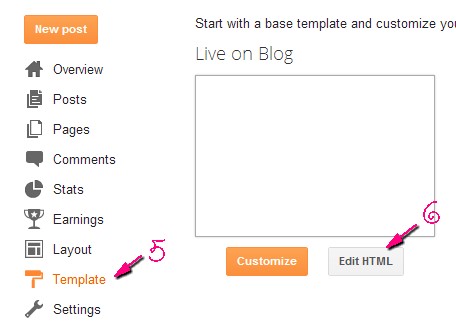
5. Now, click on the Template button.
6. And the Edit HTML after that.
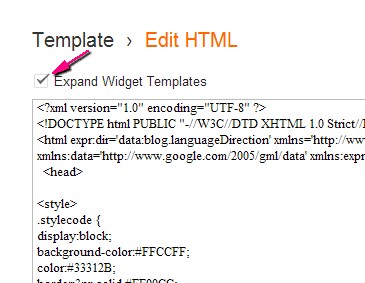
7. Once the HTML has opened, click on Proceed and tick on theExpand Widget Templates box.
8. Now, hit CTRL + F to find the widget ID.
9. Once you found it, look for the highlighted line below.
Immediately below that line, paste this code:
<b:if cond="data:blog.url == data:blog.homepageUrl">
10. Next, find the highlighted line below.
Above this code, paste this code:
</b:if>
11. Hit the Save button.You're set. Wanna see a demo.
Here's my homepage. Scroll down until the end of one post. You'll see my note about the comment.
Now, here's a blog post page. You'll not see the comment note anymore.
On the other hand, If you want the ads to appear on the blog posts and not on the homepage, you can do this.
Enjoy this tutorial! :)
Tag :
Blogger Tutorials,
Tutorials
How to Get the Tweet URL
Tweet URLs are important to bloggers who are joining blog giveaways and contests. You would also need it if you want to directly link to a single tweet of somebody.
So, how to get it.
1. Tweet something.
2. Wait for the tweet's timestamp to appear. See sample below.


5. You can now copy the tweet URL.
So, how to get it.
1. Tweet something.
2. Wait for the tweet's timestamp to appear. See sample below.
3. Click on it.
4. It will lead you to that tweet's page.

Tag :
Tutorials,
Twitter Tutorials